When you purchase through links on our site, we may earn an affiliate commission at no extra cost to you. This helps us continue to create guides like this for our audience.
How to test the speed of your hard drive.
Often overlooked but a very crucial aspect of any type of work is the speed of your hard drive. A slow drive can cripple your workflow and often you won’t know what exactly is causing the problem. Our computers have pretty good built-in tools to monitor the performance of different components of our system but the speed of the hard drive is somewhat tricky to measure. Activity Monitor on macOS will show you how much data each application is writing and reading on your system, but it can’t show you the top speed your drive has.
Blackmagic Disk Speed Test is an amazing free software that allows you to quickly test the read and write speed of any hard drive, whether that’s the internal drive of your computer or an external hard drive. This is a great tool for checking your drive’s performance and it can be useful for troubleshooting purposes too. I was just using this tool to test the speeds we get with our company server after configuring a fresh set of desks in a new edit bay.
Best External Hard Drives for Video Editors
If your disk speed is slowing you down or you just need more space it’s probably time for a new external hard drive. Most computers these days will have a fast SSD as their internal built-in drive and those are great, except they’ll come with a rather limited capacity. Good for smaller files but if you work with large video files, graphics, or 3D projects you’ll need something with a bit more storage space.
Below are the top picks of our team for video work and motion graphics.
SSD – Small and Fast
Just like the internal SSD on your computer, you can get an external SSD drive for added storage at blazing-fast speeds. Speeds vary between different models so not all SSDs are the same, but in general an SSD will be faster than other drives. Because of this they’re more expensive, but if you use them every day or do work on your drives it’s almost always worth the extra money to invest in a faster drive.
Our team has been using Samsung SSDs for a long time and they’ve been fast, easy to use, and reliable. The T7 is incredibly small so it’s easy to slide in your pocket, backpack, or camera case so you can bring a couple of terabytes worth of storage with you anywhere you go. With read and write speeds at around 1,000 MB/s these are great for ingesting video footage and photos after a long day of shooting and it’s a great working drive when you need to edit while being out of the office.
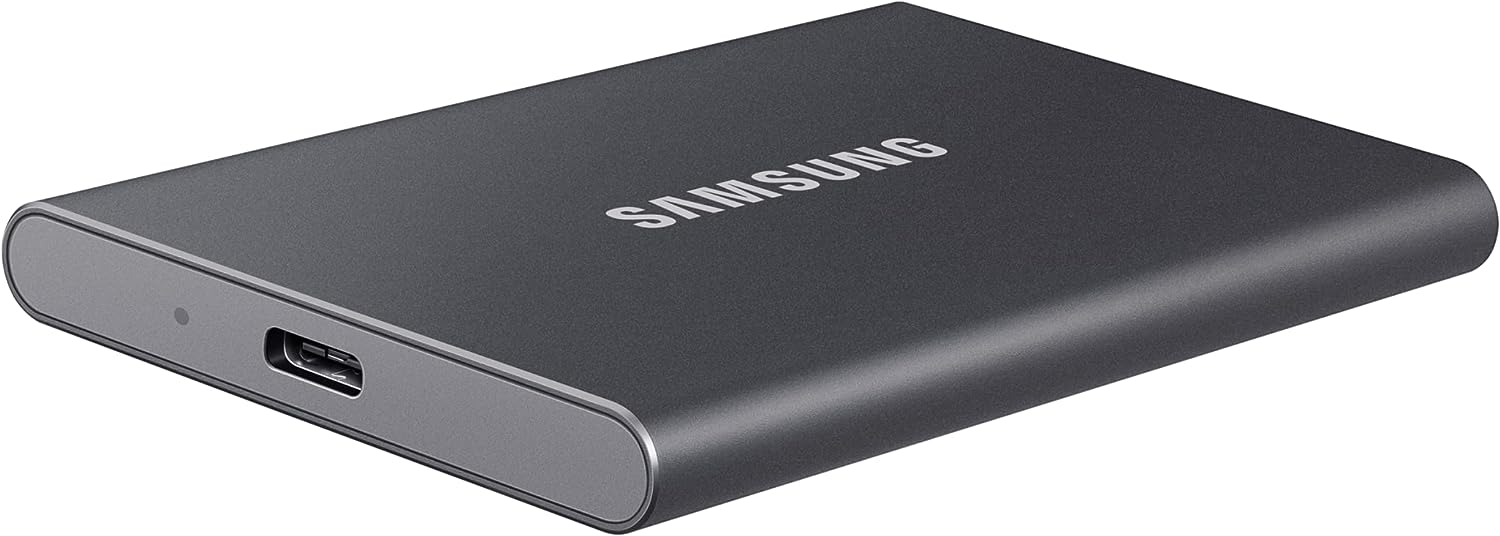
Samsung T7 (2TB) SSD – View on Amazon
Samsung T7 (1TB) SSD – View on Amazon
G-RAID – When You Need More Storage
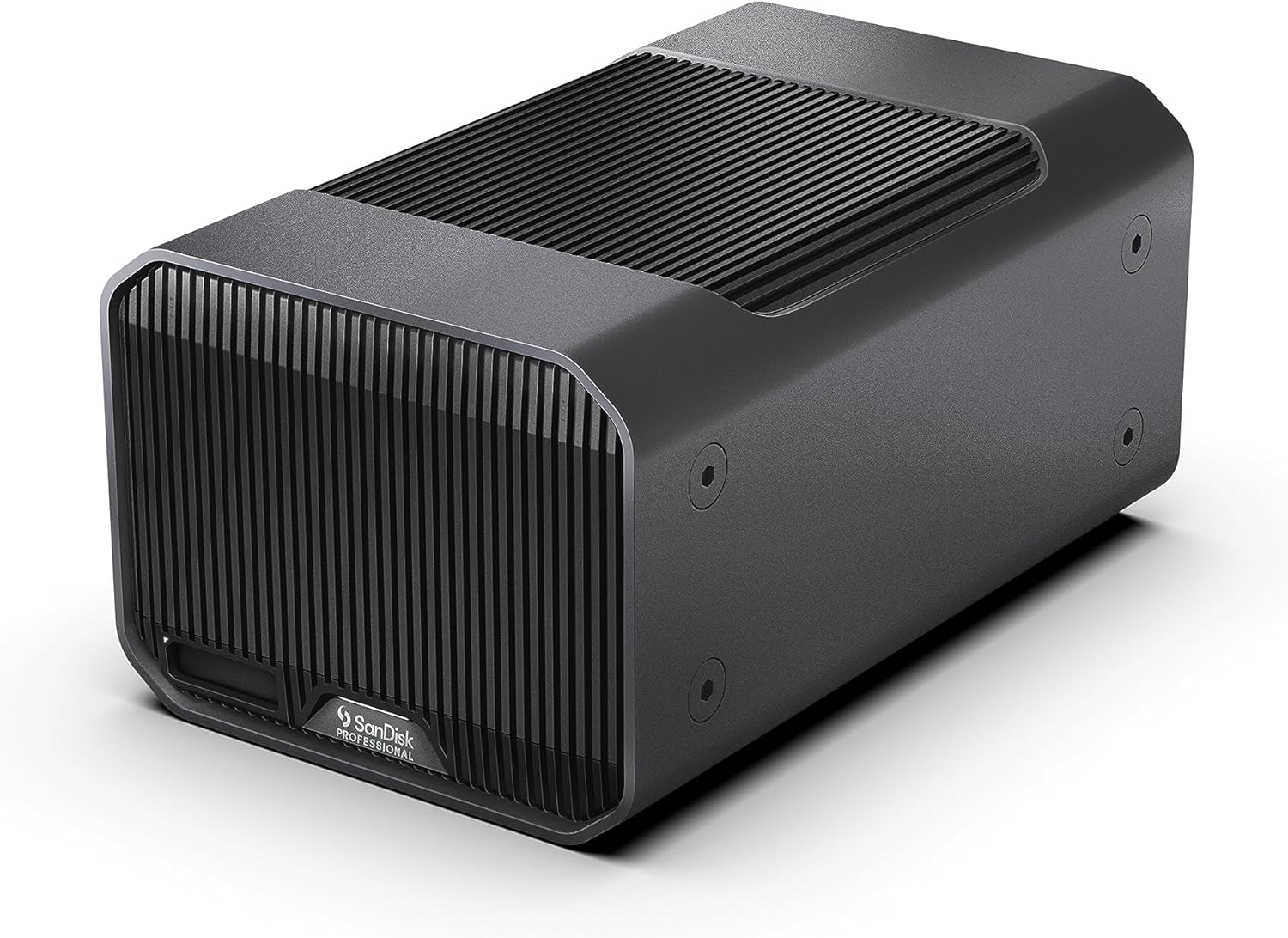
As great as SSDs are a lot of times we just need more than a couple of terabytes worth of storage. That’s where G-RAIDs come in. These are the industry standard for video work, they’re extremely reliable and provide a lot of storage for a reasonable price tag. As the name indicates, G-RAIDs have two drives inside so you can configure them to a RAID 1 setting, mirroring all your data between the two drives inside the enclosure, giving you an extra layer of security. If one drive fails, you’ll still have a copy on the other drive. The downside is that this configuration will cut your storage space in half and also slow down your read/write speeds since every file will be written on two separate drives. A lot of people end up using RAID 0 configuration which works similar to a regular external hard drive, utilizing the full capacity of the drive and giving you maximum read/write speeds. You can easily switch between RAID 0 and RAID 1 but every time you change from one to another the drive needs to be formatted.

Our go-to G-RAID has been the G-RAID 2, which is about to get discontinued soon to make room for the new G-RAID Mirror. They’re more or less the same product, the new Mirror model has a redesigned enclosure, slightly different capacity options, and comes pre-configured to RAID 1 (the setting that mirrors your files cutting your storage space and speeds in half but adding a layer of security) but you can change the configuration to RAID 0. It also has a slot for an additional SSD drive (sold separately) so you can transfer content on the SSD while on the road and pop it in your G-RAID enclosure when getting back to your desk. We haven’t had a chance to test that yet, but it sounds like a cool and convenient feature.
Connections are also slightly different. G-RAID 2 has dual Thunderbolt 3 ports and a separate single USB-C port, while G-RAID Mirror only has dual Thunderbolt 3 / USB-C ports. Both versions are good for daisy chaining drives together and we’ve had as many as five G-RAIDs chained together when copying files on multiple drives simultaneously.
G-RAID Mirror also has a physical switch in the back for changing between RAID 0 and RAID 1. G-RAID 2 only does this through software and it’s a little weird to have a physical switch for it, most users set it up once and won’t change it after that so the need for a physical switch is debatable.
G-RAID 2 (24TB) – View on Amazon
G-RAID Mirror (36TB) – View on Amazon
 Quick Tutorials
Leave a comment