You’re interested in an Apple Watch but not quite sure if it’s worth the money? This guide is for you.
When it comes to the Apple Watch, there are two types of people. There’s the type that appreciates and enjoys the tech and continues to use their watch regularly, because it’s making their lives easier. And then there’s the type that wears it a few times and ends up tossing it somewhere in their drawer, because they don’t feel the need for a device like this.
The problem is that most people can’t tell which category they belong to until they’ve had an opportunity to test the watch themselves.
I bought my first Apple Watch five years ago and I’ve worn it every single day. I’m a fairly techy guy myself, and even for me it took me a while to figure out how to fully utilize all of its features and capabilities. I remember researching it before buying one and having this weird feeling – I was pretty sure it’s a great device and something I would enjoy using, but I wasn’t quite sure what you can actually do on an Apple Watch.
So what does an Apple Watch do then?
Think of it as a wearable extension of your phone. A lot of the functionality and notifications that you get on your phone will automatically be available on your Apple Watch. There’s about a million things you can do on an Apple Watch, but I find myself using the same core features 99% of the time, and to give you some inspiration on what this watch is good for, I made the video above to show how it’s making my life easier.
It’s customizable. Almost too customizable.
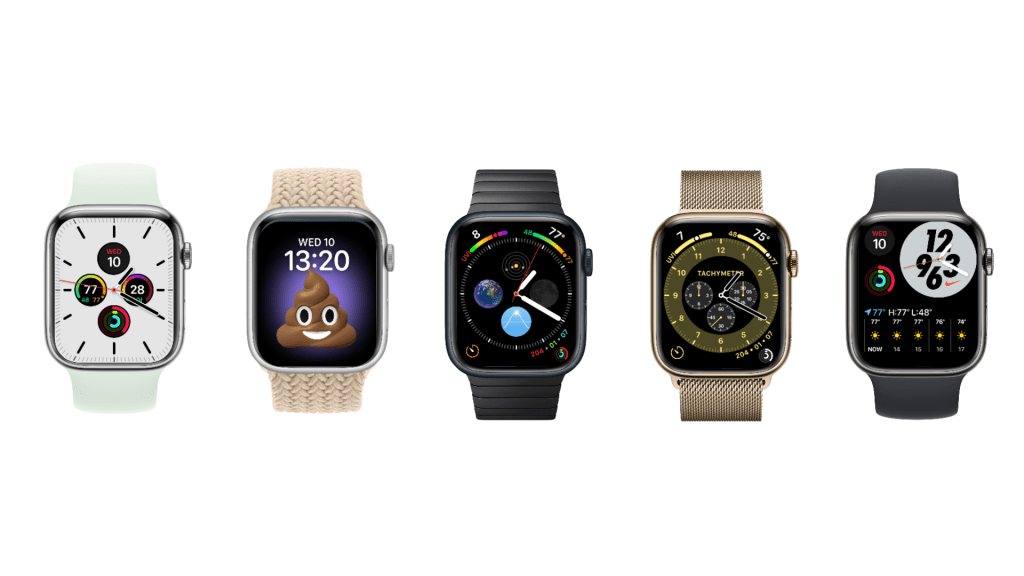
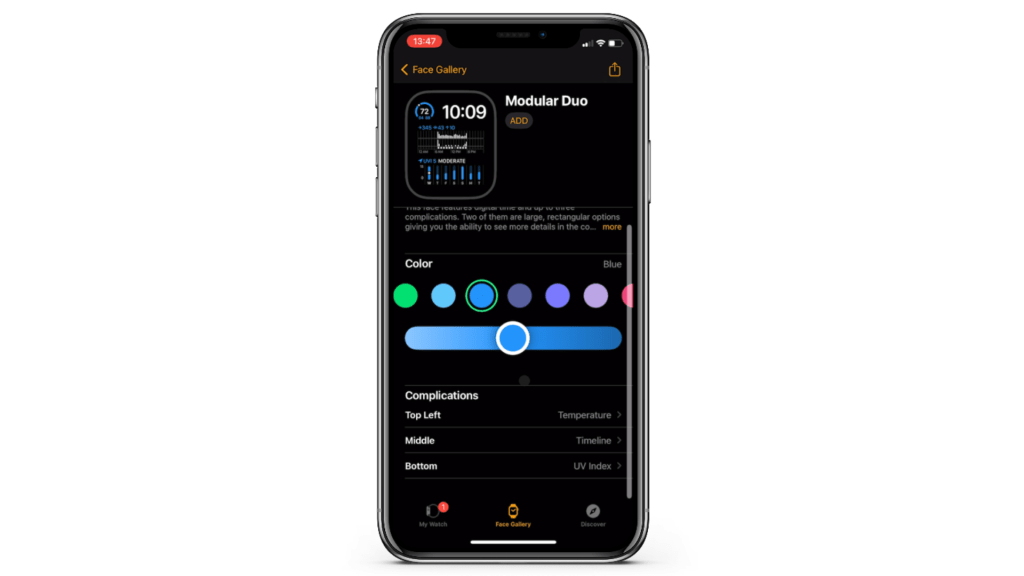
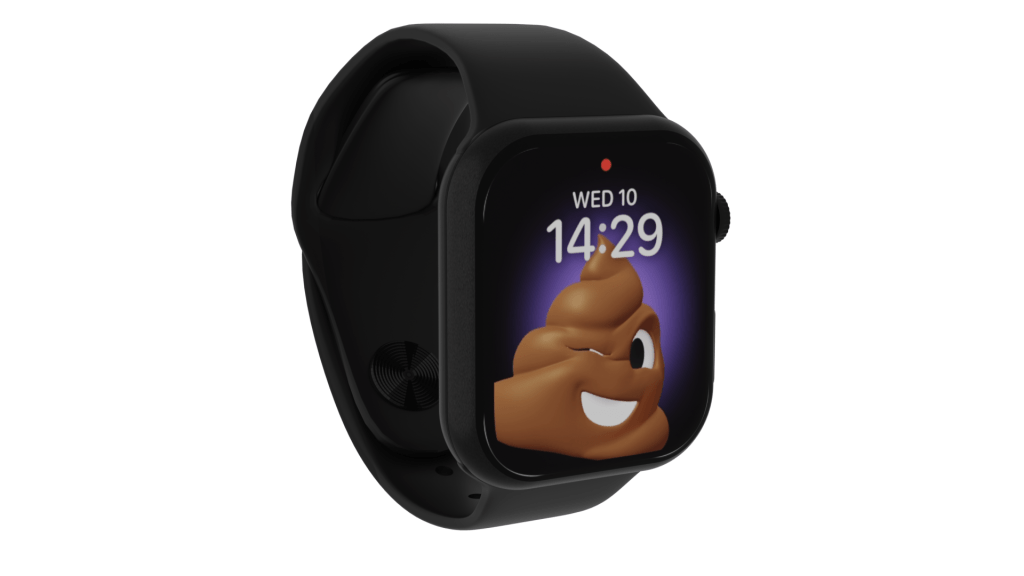
Before getting into specific tasks I do on my watch, I want to mention watch faces. A big reason why I like the Apple Watch is the insane amount of freedom you have when it comes to customizing your watch face. They range from simple minimalistic choices to more complicated ones that are loaded with information. The best part? You can pick any watch face and customize it to your liking. Change the colors, change the complications (meaning, which applications and features are displayed on your watch “home screen”) and easily swap between watch faces whenever you want. I usually stick to my go-to watch face that has all the info I’m used to seeing when glancing at my watch, but sometimes I like to experiment and try out different looks.
Things I do on my Apple Watch daily
Weather info
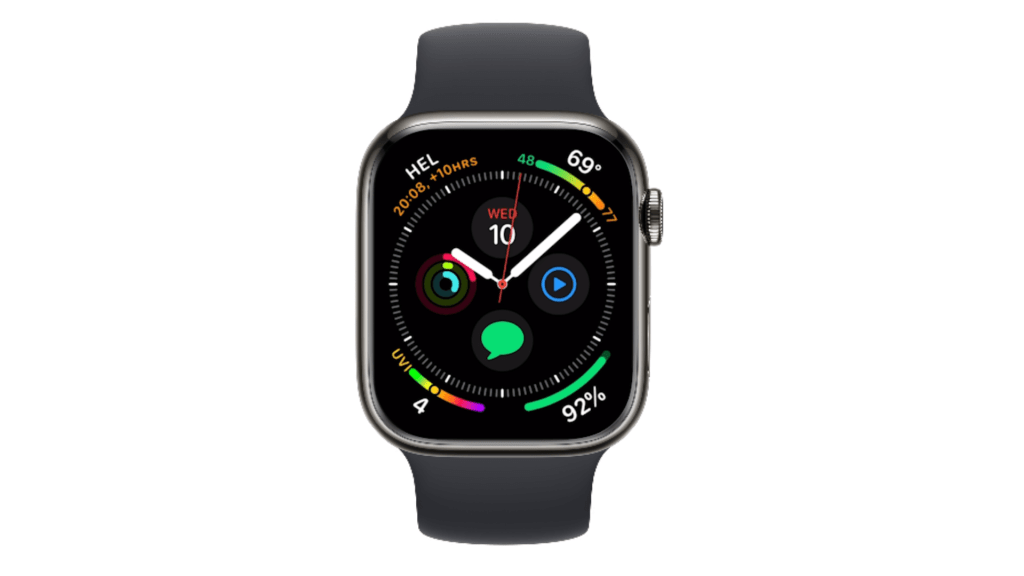
What’s the current temperature? Or what’s going to be the high temperature today? A quick look at the top right corner of my watch shows me the current weather info. And living in Southern California where the UV index can get pretty high, I like to keep the UV index visible on the opposite corner. I have a skin type that burns easily and being aware of the UV index has been a big help when avoiding sunburns. Sometimes everyone should pay attention to.
World clock
Next up, world clock. I have friends and family in another country, so having their local time visible in the corner of my watch is great, especially when dealing with a bigger time difference.
TV Remote
The blue play button on my watch face is the remote, and it allows me to control my Apple TV using my watch. Great tool to have when I happen to be far away from the physical remote, and I need to quickly change the channel or skip an ad on YouTube.
3rd party apps
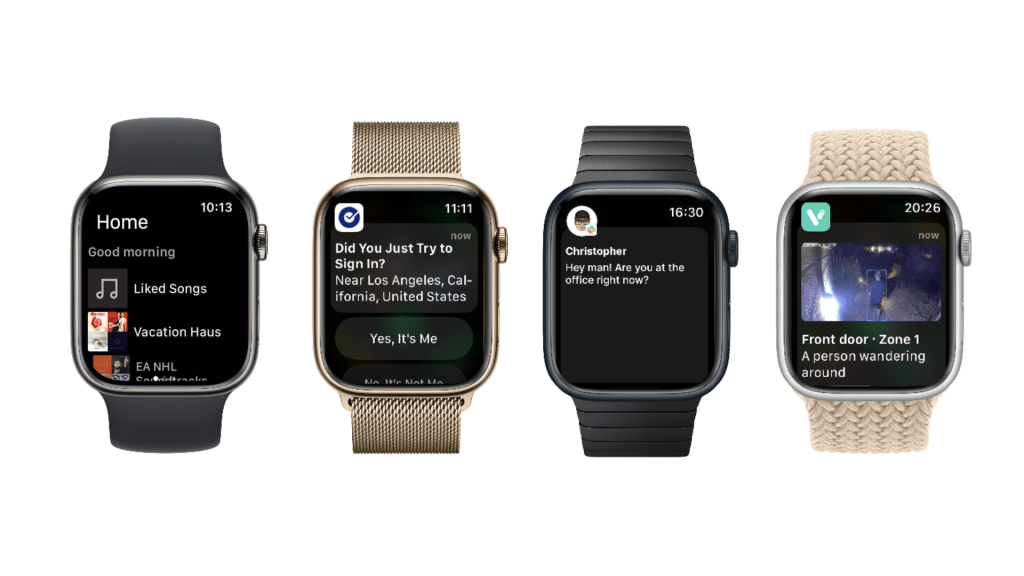
Let’s jump into 3rd party apps next. I don’t use a lot of 3rd party apps, but one that’s been very helpful is the ability to control my Spotify playback, even when I’m playing music on another device. I use this in situations where I have music playing on my phone, usually connected to a Bluetooth speaker or TV, and I’m either working in the backyard or cooking in the kitchen. I can control the playback from my watch while being far away from the device that’s actually playing my music. And of course, you can use your watch as the playback device as well.
Other useful things I do using 3rd party apps include approving 2-factor authentication prompts, reading Slack messages at work when I’m away from my computer, and checking notifications from my doorbell camera. The nice thing about these is that I never had to set up anything on my watch. My phone pushes these automatically to my watch so I never had to worry about downloading 3rd party apps on my watch. And that’s the kind of smooth, effortless user experience I like.
Set reminders, timers or do unit conversions
I’ve never been a big Siri user on my phone, but the ability to talk to your watch is pretty convenient. I often use it when I’m in the middle of something and need to set a quick reminder – just pressing the digital crown and telling my watch to remind me about something at a specific time and date.
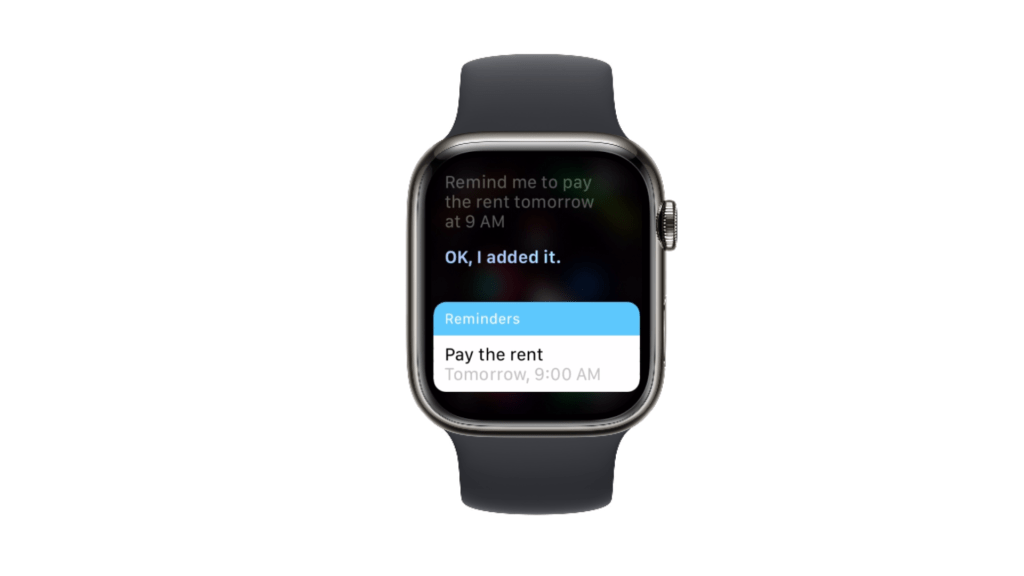
Other things I like to do using voice commands are setting timers when I’m cooking or taking my daily cold plunge and making unit conversions, whether it’s from deciliters to cups, dollars to euros or from miles to kilometers.
Check sports scores
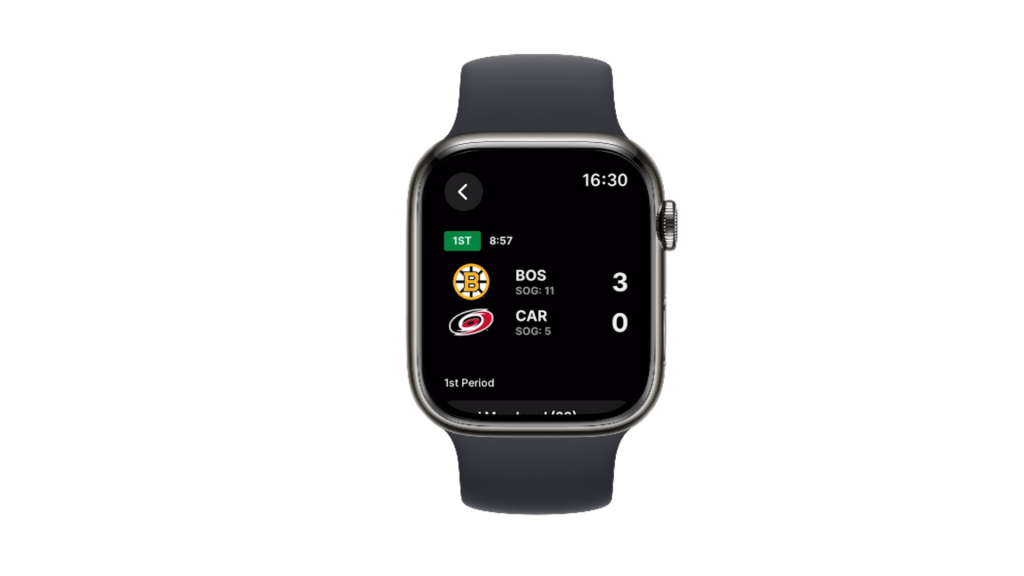
I’m a big sports guy, so checking sports scores on my watch is another thing I do pretty often. Usually when I’m standing at a checkout line or sitting in a boring meeting where I don’t want to bust out my phone. If only there was a way to watch games live on the watch. Maybe some day.
Besides live updates inside the app, some apps like the official NBA app has the ability to add your favorite team’s game info to your watch face as well.
Sleep tracking
I don’t do this very often, but sometimes it’s nice to track your sleep quality. Unfortunately, it doesn’t work automatically and you have to manually put the watch in sleep mode. After that, just cover the watch with your hand and the screen of your watch turns off so it doesn’t bother you at night. Tap the screen to check the time, and hold down the digital crown to unlock your watch. Once you wake up, turn off sleep mode and you’ll see your sleep statistics in the health app on your phone.
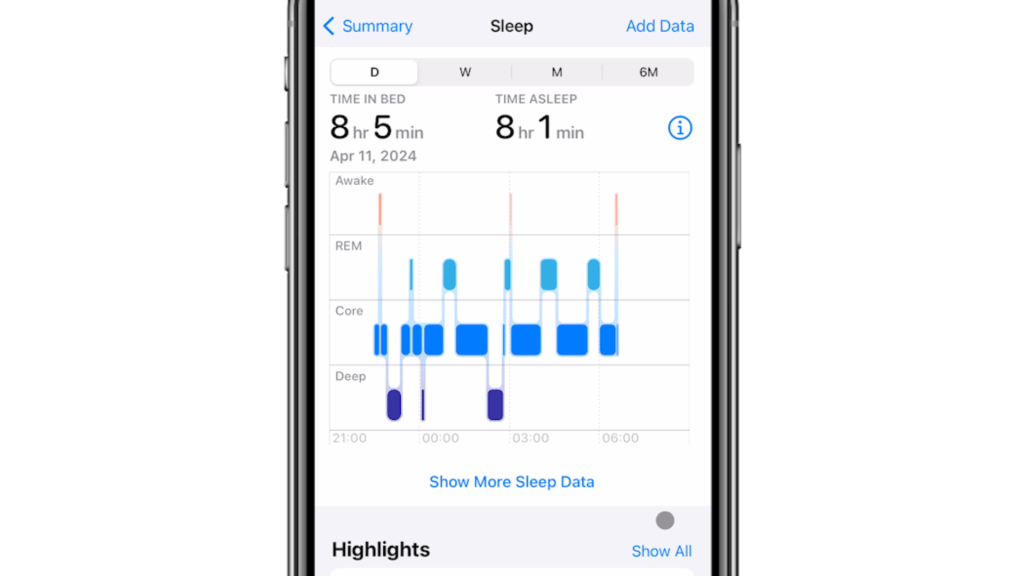
You’ll see things like the different sleep stages throughout the night, your respiratory rate, and heart rate. If you want, you can schedule sleep mode to turn on and off automatically, so you don’t have to manually do it every night when you go to sleep.
Workouts
And speaking of health, wearing an Apple watch has definitely made me more active. The way it challenges you to close your rings is a nice way to keep you active on days when you might otherwise be lazy and do nothing. Besides encouraging you to close your daily activity rings, your watch will measure your activity levels over time and set up monthly challenges for you. I like the challenges because they’re individually adjusted to your fitness level, so they’re always pushing you to do a little better, while still keeping the goals realistic.
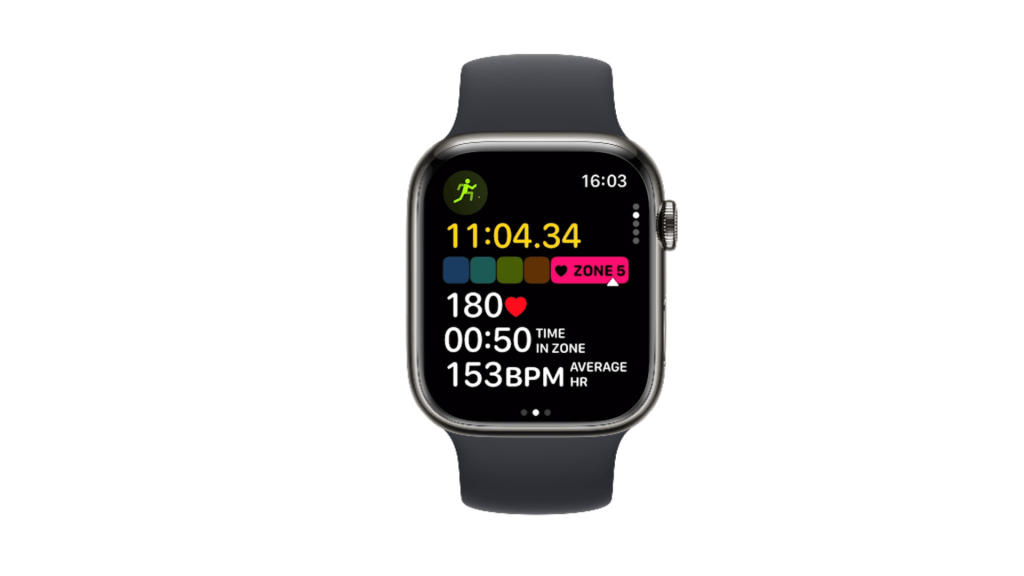
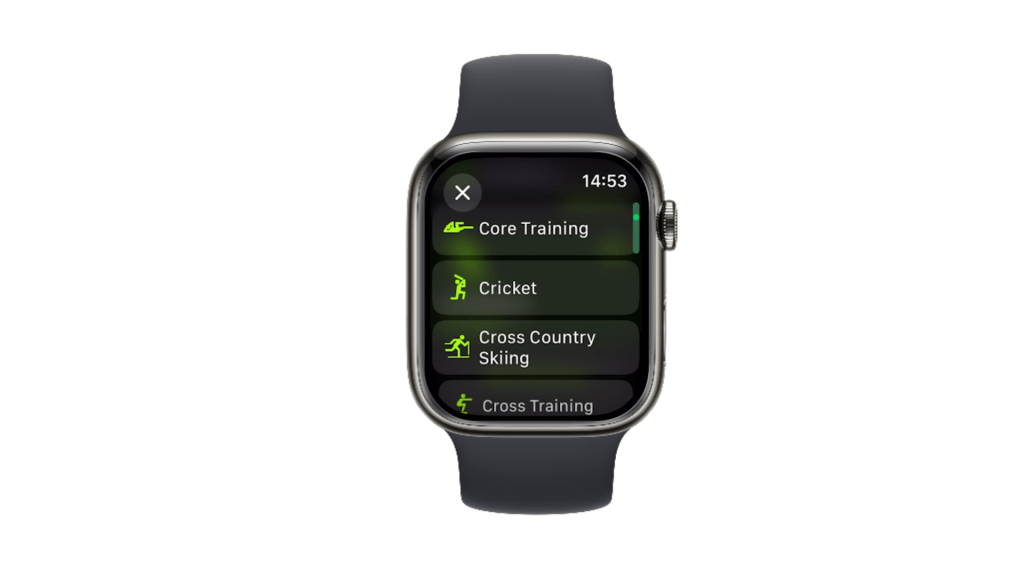
The workout app has a ton of different modes optimized for different activities, so whether you’re doing yoga, swimming, basketball, or pretty much any sport, there’s a workout program specifically for it.
Ping my iPhone
Ping my iPhone is pretty self-explanatory, and it’s super useful. If you can’t find your phone, open the control center on your watch and tap this button. Your phone will make a loud pinging sound, making it easy to find it.
Flashlight
The last thing on my list is the flashlight. Apple Watch doesn’t have an actual light like your phone, but turning this on will set your watch to a super bright white screen, which is surprisingly effective in a dark room. I use this pretty often when it’s late at night, the lights are off and I’m trying to find my airpods or something similar without turning on the lights and waking up everybody.
Apple Watch as a gift
Besides getting a watch for myself, I’ve gifted two watches to family members. I got one for my mother who’s 65 years old, and she’s the type who would never buy a smart watch for herself. Somehow, after taking a bit of time to get used to her Apple Watch she’s now been religiously wearing it every day for years, and continues to be excited about everything she can do on her watch.
I also gifted a watch to my wife. She’s the kind of occasional user who wears it maybe 25% of the time, usually when she wants to track her workouts or when she’s going somewhere where she can’t carry her phone around.
Summary
If you enjoy tech, the Apple Watch is 100% for you.
If you’re more of a traditional mechanical watch user, it might still be something you really enjoy, given the endless options for customizing your watch with watch faces and bands that come in different materials and colors. You can make it look very sleek and professional, or you can make it look like a G-Shock watch with certain watch bands and cases (or go with the more rugged Apple Watch Ultra).
Some people buy it just to track their workouts. Some people buy it for the fall detection and the ability to call for help if you’re in a situation where you can’t reach your phone. And some people are perfectly happy to just use it as a watch and maybe read a text message here and there. It’s a versatile piece of tech and I’ve seen people be surprised how much they enjoy using it, even if they felt earlier that they’d never need a smartwatch.
 Quick Tutorials
Leave a comment