How to export mp4 videos with a transparent background
Usually, if you need a video file with transparency you’ll need to use a format like WebM or Apple ProRes 4444 with an alpha channel. But there’s a sneaky feature in macOS that allows you to make mp4 videos with transparency.
Conversion
To make mp4s with transparency you’ll first need your video in another format. I’m using a ProRes MOV file here which i’ll convert to mp4 while retaining transparency.
In Finder, right-click your video and choose “Encode Selected Video Files”. From the encoding menu, choose “HEVC” and check the box to preserve transparency.
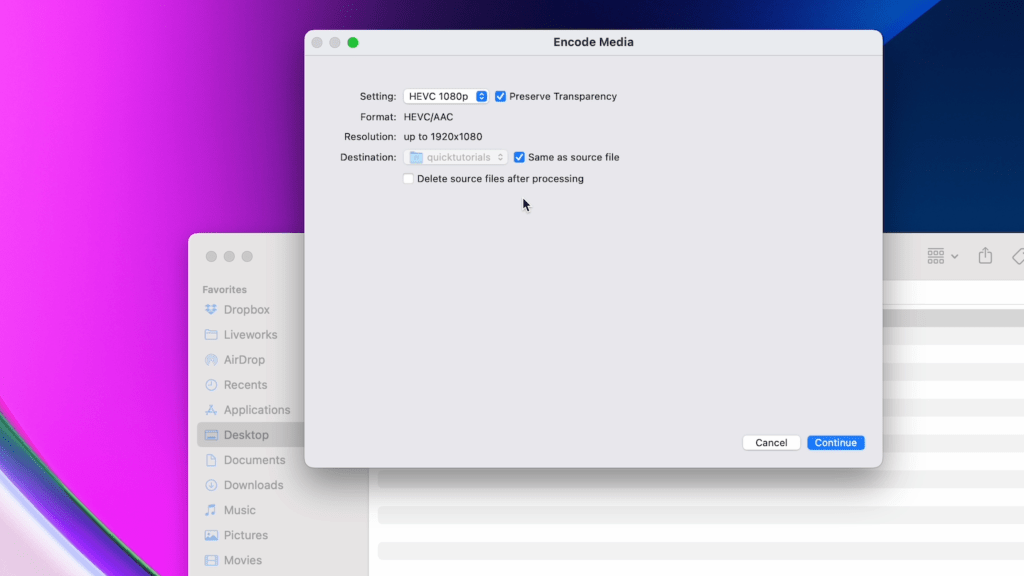
Once your encode finishes, you’ll have an MOV file using HEVC coded with a transparent background. Now you can simply rename your file from MOV to Mp4.
Mp4 videos with transparency are not universally supported by every application, so if you import this file into Adobe Premiere or After Effects, you’ll most likely see it with a dark background. The transparency is there, but not every application knows how to properly read these type of files.
To check transparency you can either import the file into Final Cut Pro, which automatically reads these files properly showing them as transparent, or you can check them in Google Chrome. Open your mp4 video using Chrome and you’ll see it first open with a black background. That’s because Chrome defaults all pages to a black background. If you open the inspector and change the background color to something else (watch the YouTube video linked in this post for detailed steps on how to do this), you’ll see that the video is indeed transparent.
Our favorite setup:
- •Apple Magic Keyboard: https://amzn.to/486dCA0
- •Apple Magic Mouse: https://amzn.to/3Um4CDy
- •Laptop – MacBook Pro M3 Pro: https://amzn.to/43Bj7WG
- •Desktop – Mac Mini M2 Pro: https://amzn.to/3TB1ul9
- •Monitor – Apple Studio Display: https://amzn.to/49lAxrj
- •2TB SSD Hard drive: https://amzn.to/49trq86
When you purchase through links on our site, we may earn an affiliate commission at no extra cost to you. This helps us continue to create guides like this for our audience.
 Quick Tutorials
Leave a comment